Common home printer problems and how to fix them
Most home printer problems come from a short list: dry ink, wrong paper, a loose cable, a stale driver. Start here before you buy a replacement.
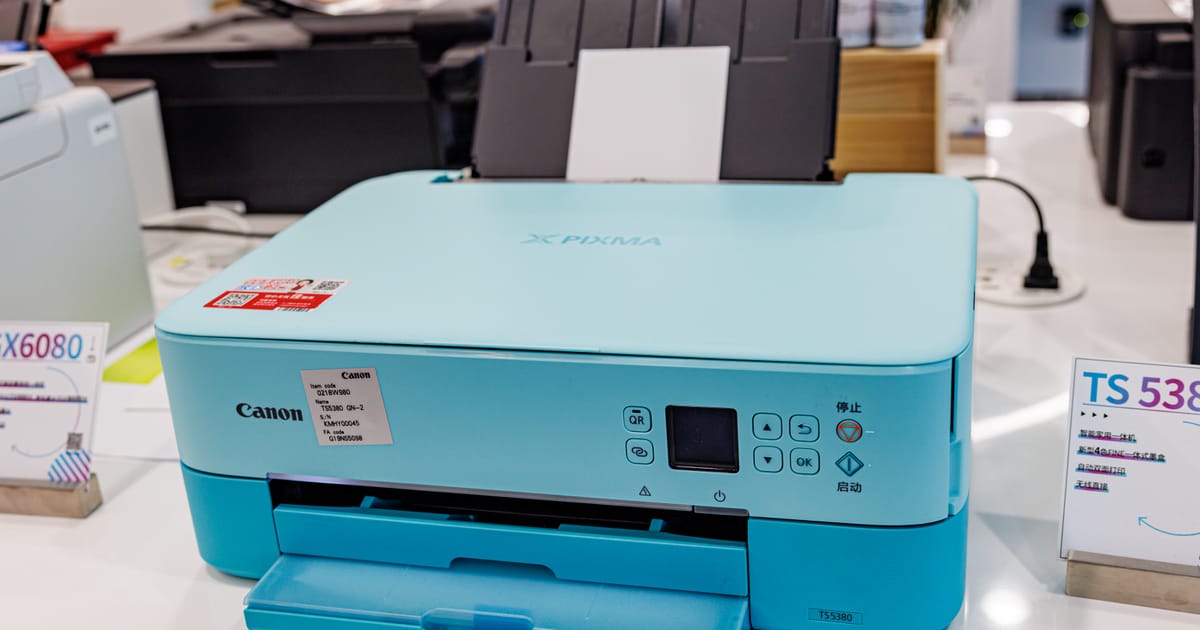

Home printers break in predictable ways. The internet suggests you buy a new one at the first sign of trouble; often a ten-minute check puts the old one back into service. Here is the list we would work through in your kitchen before writing it off.
1. "My new inkjet prints faded lines or wrong colours"
Almost always clogged nozzles. The ink dries where the head sits when you have not printed for a while. Run the printer's nozzle check from its menu. It will print a small grid of lines; any missing lines are blocked nozzles. Then run a head clean. One clean is usually enough; two if the print improves but is not fixed; three is where you stop, print a nozzle check, and try again tomorrow. Repeated head cleans burn ink fast.
If cleans do not help, the cartridge may be dry. Shake it (gently, over a sheet of newspaper) and look through the viewing window if there is one.
Prevention is to print something (anything, a test page) every two weeks.
2. "The printer says offline and will not come back"
In our experience, the order of likely causes is:
- The printer dropped its Wi-Fi after a router restart.
- The printer is on the 2.4 GHz network and the computer is on the 5 GHz; the router is not letting them talk.
- The print queue on the computer is stuck.
- The driver has corrupted after an update.
Work through them in order. Power-cycle the printer first. Then, on the computer, open the printer settings, delete the stuck job at the top of the queue (there is always one from last Thursday), and send a new one. If that fails, remove the printer from the computer and re-add it. Our phone printing guide covers the same symptoms on iPhones and Android phones.
3. "Paper keeps jamming"
Three causes, in order of frequency:
- Humidity. Damp paper curls at the leading edge and catches the pickup roller. Swap for a fresh ream from the middle of the pack.
- Overloaded tray. Even a tray marked "250 sheets" prefers to be two-thirds full. Fan the stack before you put it in.
- Worn pickup roller. If the printer is more than a few years old and keeps feeding two sheets at once, the rubber roller is glazed. Clean it with a damp lint-free cloth. If that fails, replacement rollers for common printers cost a few pounds and are a five-minute job.
When you clear a jam, open every door the manual asks you to open, even if the paper is visible from the front. There is often a small torn corner wedged at the back of the fuser that will re-jam the next job.
4. "My laser prints streaks or bands"
If the streak is a vertical white line and it appears in the same place on every page, toner is low in that part of the cartridge. Shake the cartridge gently from side to side (toner powder redistributes) and print again. If it comes back after a few pages, it is time to replace the cartridge.
If the streak is grey and shows on the back of pages as well as the front, toner has escaped into the fuser area, usually from a cracked cartridge. Replace it.
If you get regular horizontal bands at a fixed distance apart, that distance usually matches the drum circumference. Inspect the drum for a scratch or a spot; if the printer has a separate drum unit from the toner cartridge, replace the drum.
5. "The print keeps coming out tiny" or at the wrong size
Almost always a mismatch between what the document says it is (US Letter, A3) and what the printer thinks you have loaded (A4). Check the Paper Size in the print dialog and the Paper Size set in the tray. Both need to match the paper that is actually in there. Some drivers quietly default to Letter even on UK machines.
6. "My wireless printer prints then goes to sleep forever"
Many printers have a short Wi-Fi radio timeout to save power. When they wake, they take a few seconds to re-register with the router, which is long enough for your phone to decide they are offline. If the printer supports it, turn Wi-Fi sleep off, or turn eco mode down a notch. If the router supports it, give the printer a reserved IP address.
7. "I printed from my phone and it came out blank"
You probably printed a PDF with transparent layers over a background the phone does not render well. Share the file from a different app (Files instead of Mail, for instance), or open the PDF in a PDF reader on the phone and print from there. On iPhone, the Files app usually prints more reliably than Mail for PDFs.
8. "The printer wants a firmware update and I am nervous"
If the printer is working and you use third-party cartridges, decline the update. Firmware updates have been used by several manufacturers to block compatible consumables. If the printer has stopped working and the vendor says update as the fix, back up the current state (take photos of the menus, note the current firmware version) and update.
When to stop and buy a new one
Three signs: the printer has been repaired twice in a year for different faults; replacement parts cost more than half of a new entry-level model in the same class; or the cartridges you now need have gone out of stock everywhere. For everything else, a bit of maintenance and the right paper keeps most printers happily running for five or six years. Independent reviews like those on Which? can help you pick the next one without losing another afternoon to lists.